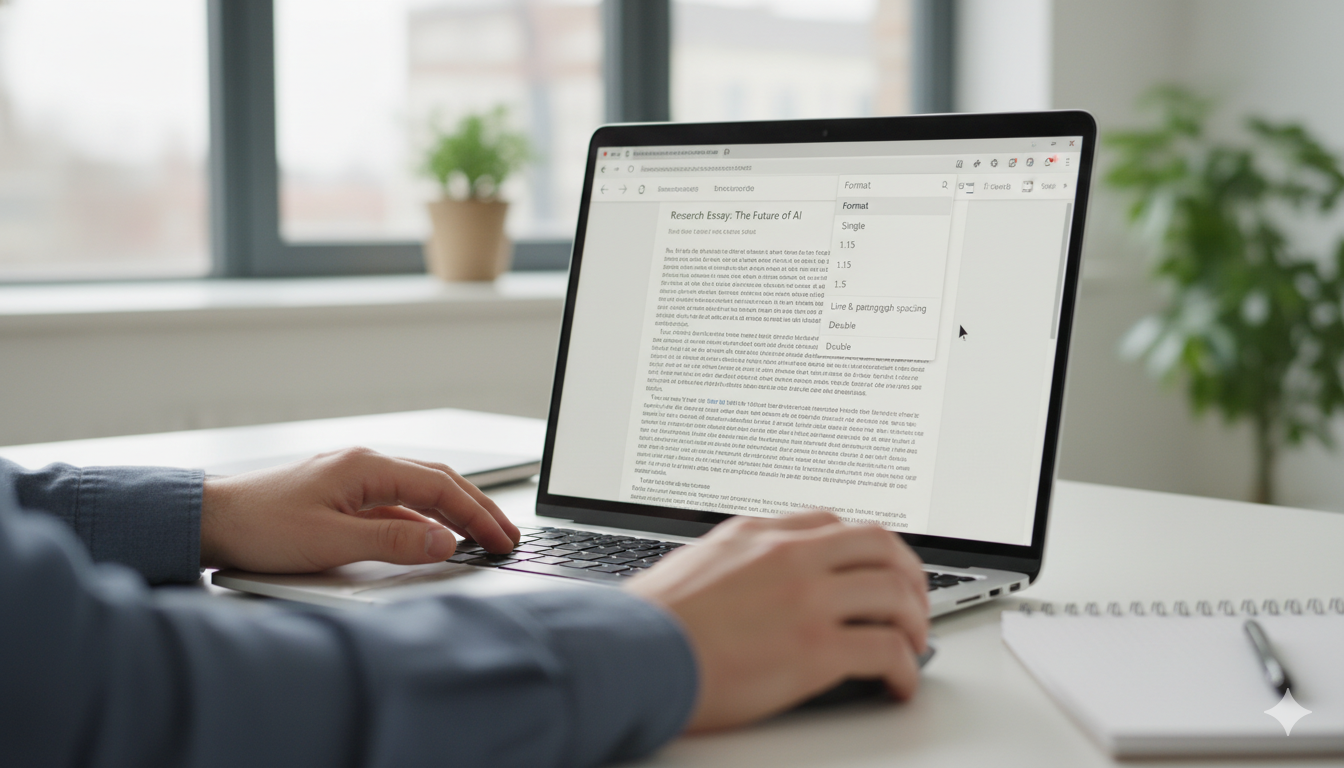
Formatting a document should never feel like a math test. Whether you are a student finishing an essay or a professional polishing a report, knowing How to Double Space in Google Docs is a fundamental skill. It makes your text easier to read and gives you plenty of room for digital or physical notes in the margins. Google Docs is a powerful tool, but sometimes the menus feel hidden, especially when you switch from a computer to a mobile phone.
In this guide, we will break down every single way to adjust your line spacing. We will cover desktops, laptops, and even how to handle your documents while you are on the move. You don’t need to be a tech genius to master this. By the end of this article, you will feel like a pro at making your documents look clean, organized, and perfectly spaced every single time.
Quick Summary Table
| Feature | Detail |
|---|---|
| Main Topic | Line Spacing in Google Docs |
| Ease of Use | Very Easy (Beginner Friendly) |
| Devices Covered | Desktop, iPhone, iPad, Android, Chromebook |
| Time to Complete | Less than 1 minute |
| Common Format | 2.0 (Double) |
Why Use Double Spacing?
Double spacing is the gold standard for many types of writing. Most teachers and professors require it because it prevents the page from looking cluttered. When lines are squished together, the human eye gets tired faster. By learning How to Double Space in Google Docs, you ensure that your audience can focus on your ideas rather than struggling to read tiny rows of text. It also provides a professional “breathability” to your layout that single spacing simply cannot match.
How to Double Space in Google Docs on Mac
If you are using a Mac, the process is incredibly smooth. First, open your document and highlight the text you want to change. You can also press Command + A to select everything at once. Look at the top toolbar for a symbol that has three lines with an up-and-down arrow next to them. Click that icon, which is the line spacing tool, and select “Double” or “2.0.” This is the fastest way to understand how to double space in google docs when you are working on a premium Apple laptop.
How to Double Space in Google Docs on Chromebook
Chromebooks are built for Google Docs, so the integration is seamless. Much like on a Mac, you will find the spacing options in the main toolbar. If your screen is small, you might need to click the “More” button (three dots) to see the spacing icon. Learning How to Double Space in Google Docs on chromebook is essential for students who use these devices for daily schoolwork. Just highlight your paragraphs, hit that spacing button, and choose the double option to instantly transform your page layout.
How to Double Space in Google Docs on iPad
Using a tablet offers a lot of freedom, but the menu looks a bit different than the desktop version. To figure out how to double space in google docs on ipad, you need to look at the top of the screen for the “A” icon with some small lines next to it. This is the formatting menu. Once you tap it, a small window pops up at the bottom. Tap the “Paragraph” tab, and you will see “Line spacing.” Use the arrows to move it up to 2.0. This works perfectly whether you are using a keyboard or just your fingers.
How to Double Space in Google Docs iPad (Quick Method)
Sometimes you just want a shortcut. If you are wondering how to double space in google docs ipad users often miss the “A” icon because it looks like a text tool. Remember, that “A” stands for “Format.” If you have a physical keyboard attached to your iPad, you can sometimes use shortcuts, but the touch menu is usually the most reliable way. It is a simple three-tap process that ensures your school assignments meet the required formatting rules without any extra stress or searching through deep settings.
How to Double Space in Google Docs on an iPad Pro
If you have a larger screen, you might see more icons, but the steps for how to double space in google docs on an ipad remain the same across all models. Always remember to select your text first! If you don’t highlight anything, the app might only change the spacing for the specific line where your cursor is sitting. I always tell my friends to select the whole document before changing the spacing to ensure the entire file looks consistent from the first page to the very last.
How to Double Space in Google Docs Mobile
When you are away from your desk, you might need to fix a document quickly on your phone. Learning how to double space in google docs mobile is a life-saver for last-minute edits. Open the app and tap the pencil icon to start editing. Then, find that same “A” format icon at the top. It feels a little cramped on a smaller screen, but the “Paragraph” tab still holds the “Line spacing” secret. Just bump that number up to 2.0, and your mobile document will look just as professional as a desktop version.
How to Double Space in Google Docs App
The Google Docs app is designed to be universal. Whether you are on Android or iOS, the “Format” button is your best friend. To master how to double space in google docs app versions, you just need to get used to the “Paragraph” menu. Many people look under the “Text” menu by mistake, but spacing is considered a paragraph property. Once you make this mental switch, you will be able to format any document in seconds, no matter what kind of smartphone or tablet you happen to be holding.
How to Double Space in Google Docs on iPhone
The iPhone screen is compact, so every tap counts. To see how to double space in google docs on iphone, open your file and tap the “Edit” button. Highlighting text on an iPhone requires a long press and then dragging the blue bubbles. After the text is blue, tap the “A” icon at the top. Switch from the “Text” tab to the “Paragraph” tab. Adjust the line spacing until it hits 2.0. This is the best way to ensure your documents are readable even when you are on the go.
How to Double Space in Google Docs on Phone
Whether you use a Samsung, Pixel, or any other device, the instructions for how to double space in google docs on phone are nearly identical. The Google Docs interface is very consistent. This consistency is great because once you learn it on one device, you know it for all of them. I once had to fix a resume while sitting on a bus; knowing exactly where the paragraph spacing menu was saved me from a lot of panic. Just remember: Edit -> Format Icon -> Paragraph -> Line Spacing.
Pro Tips for Perfect Formatting
Beyond just knowing how to double space in google docs, you should also know about “Custom Spacing.” Sometimes 2.0 is too big, and 1.5 is too small. In the desktop version, you can click “Custom spacing” under the line spacing menu to type in an exact number, like 1.75. This gives you total control over how much white space appears between your lines. Also, don’t forget to check your “Paragraph spacing” which adds extra gaps before or after your headers for a cleaner look.
Frequently Asked Questions
Can I double space an entire document at once?
Yes! On a computer, press Ctrl+A (Windows) or Command+A (Mac) to select all text. Then apply the spacing. On mobile, you can “Select All” by double-tapping a word and choosing the option from the pop-up menu before following the steps for how to double space in google docs.
Why is my double spacing not working on the app?
Make sure you have tapped the “Pencil” icon to enter edit mode first. You cannot change formatting if you are only in “View” mode. Also, ensure you have selected the text you wish to change.
What is the default spacing in Google Docs?
The default is usually 1.15. This is slightly more than single spacing but much tighter than double spacing. Many people prefer this for casual letters, but double spacing is better for formal editing.
Does double spacing increase page count?
It absolutely does! Since you are adding more physical space between the lines, your text will take up about twice as many pages. This is a common trick used by students to meet page length requirements.
Can I set double spacing as the default for new docs?
Yes, on a computer, set your spacing to double, then go to Format > Paragraph styles > Options > Save as my default styles. Now every new doc will start with double spacing automatically.
Is there a keyboard shortcut for double spacing?
While there isn’t a direct “single key” shortcut for double spacing, on Windows you can use Alt+Shift+2 (if enabled) or simply use the Alt+/ search box and type “Double” to find the setting instantly.
Conclusion
Mastering how to double space in google docs is one of those small skills that makes a huge difference in your digital life. It doesn’t matter if you are using a Mac, a Chromebook, or an iPhone; the steps are simple once you know where the Paragraph menu is hidden. Good formatting shows that you care about your work and your reader’s experience. Now that you have this knowledge, go ahead and open your latest project and give it some room to breathe. Your readers will thank you for making your content so much easier to enjoy!